Pinstack User Guide
Pinstack is a calm RSS/Atom reader: your feeds, in time order, with no algorithm deciding what you see. This guide walks through everything — signing in, adding feeds, the reading flow, and the keyboard and touch shortcuts that make it fast.
Signing in
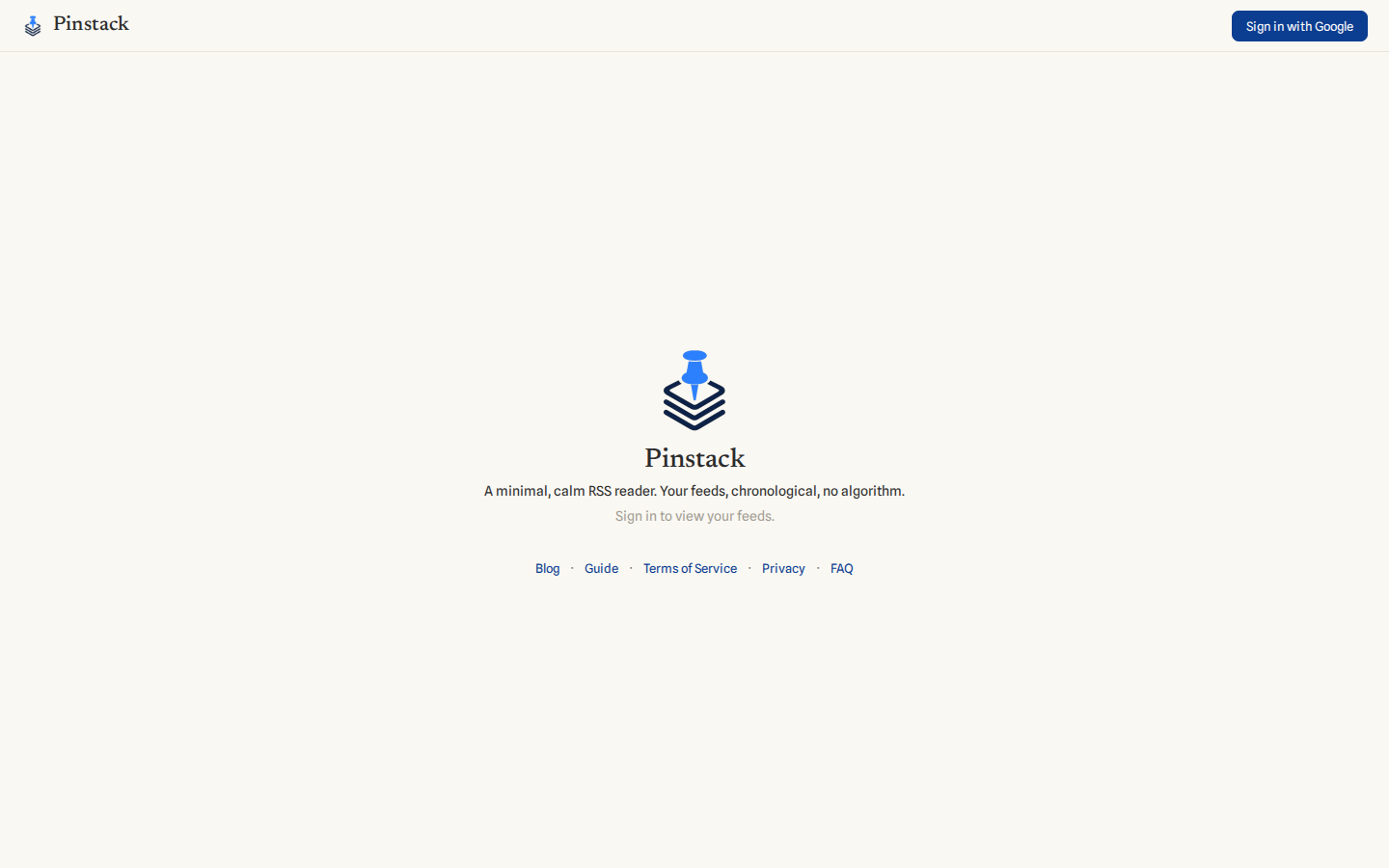
Pinstack signs you in with Google — click Sign in with Google on the welcome screen. Your feeds, reading history, and stars are private to your account; nobody else sees them. Pinstack only ever reads your email, display name, and Google account ID, used to sign you in and scope your data to you (see the Privacy Policy).
Pinstack is currently invite-only. If your account isn't on the list yet, signing in places you on the waitlist — you'll be let in once approved, no further action needed.
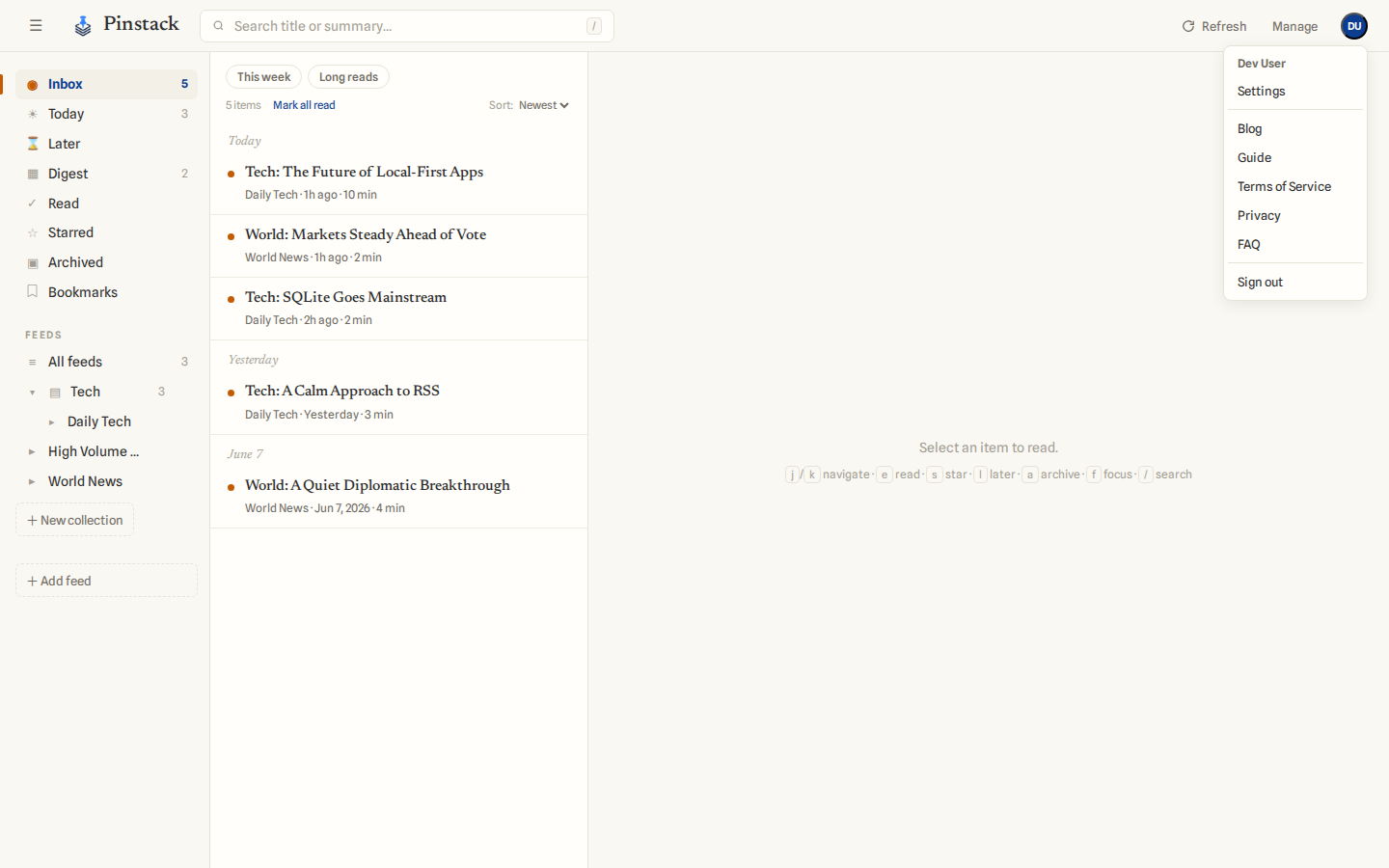
Once you're in, your name appears as an avatar in the top-right corner. Click it for this guide, the legal pages, and Sign out.
The reading flow
Pinstack is built around a single, one-directional flow. New items land in your Inbox. From there each item moves forward — never back:
The number next to a view answers one question: how much is waiting to read? So Inbox, Today, Later, and Digest carry counts, while Read, Starred, and Archived — destinations, not queues — don't.
Getting around
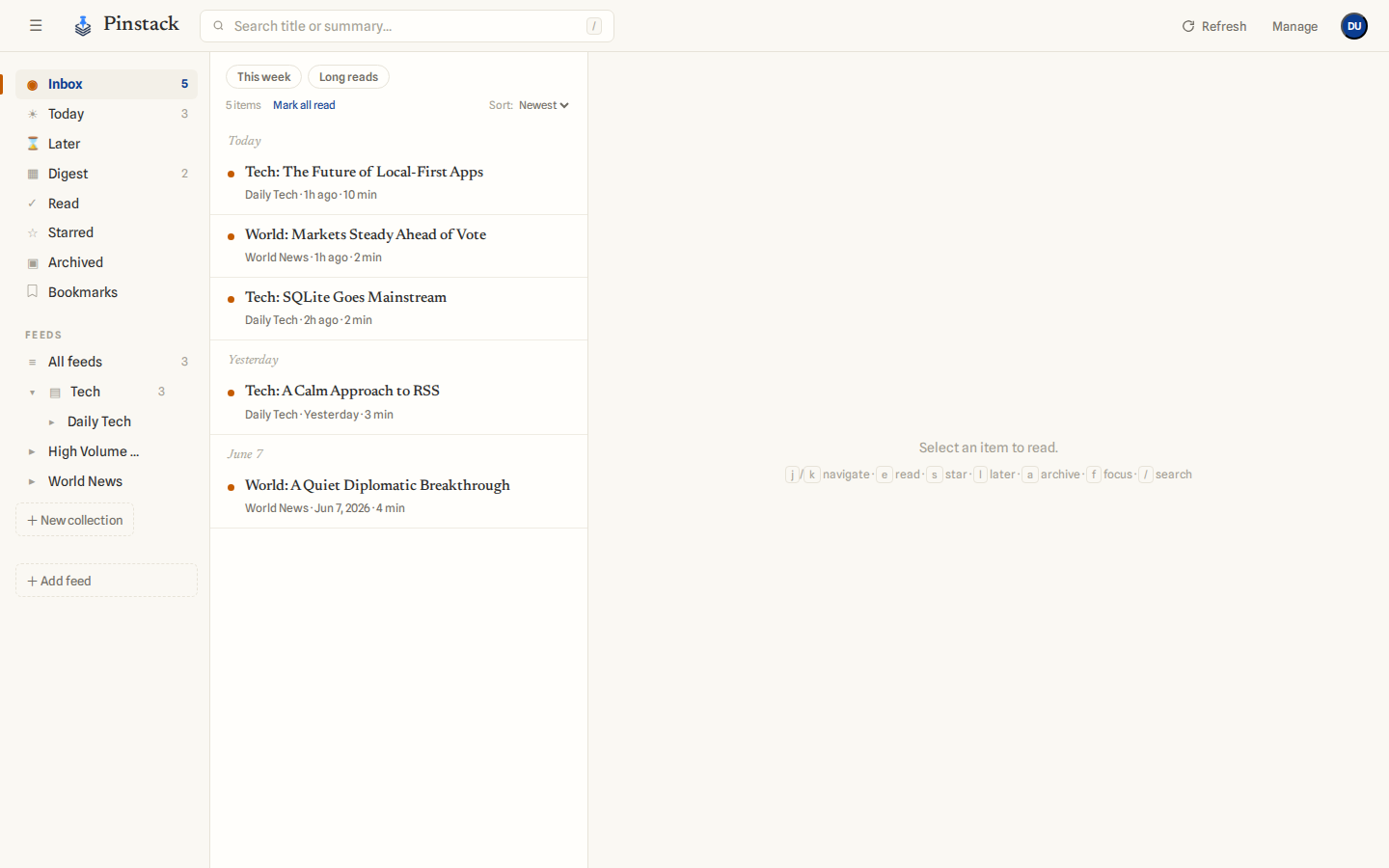
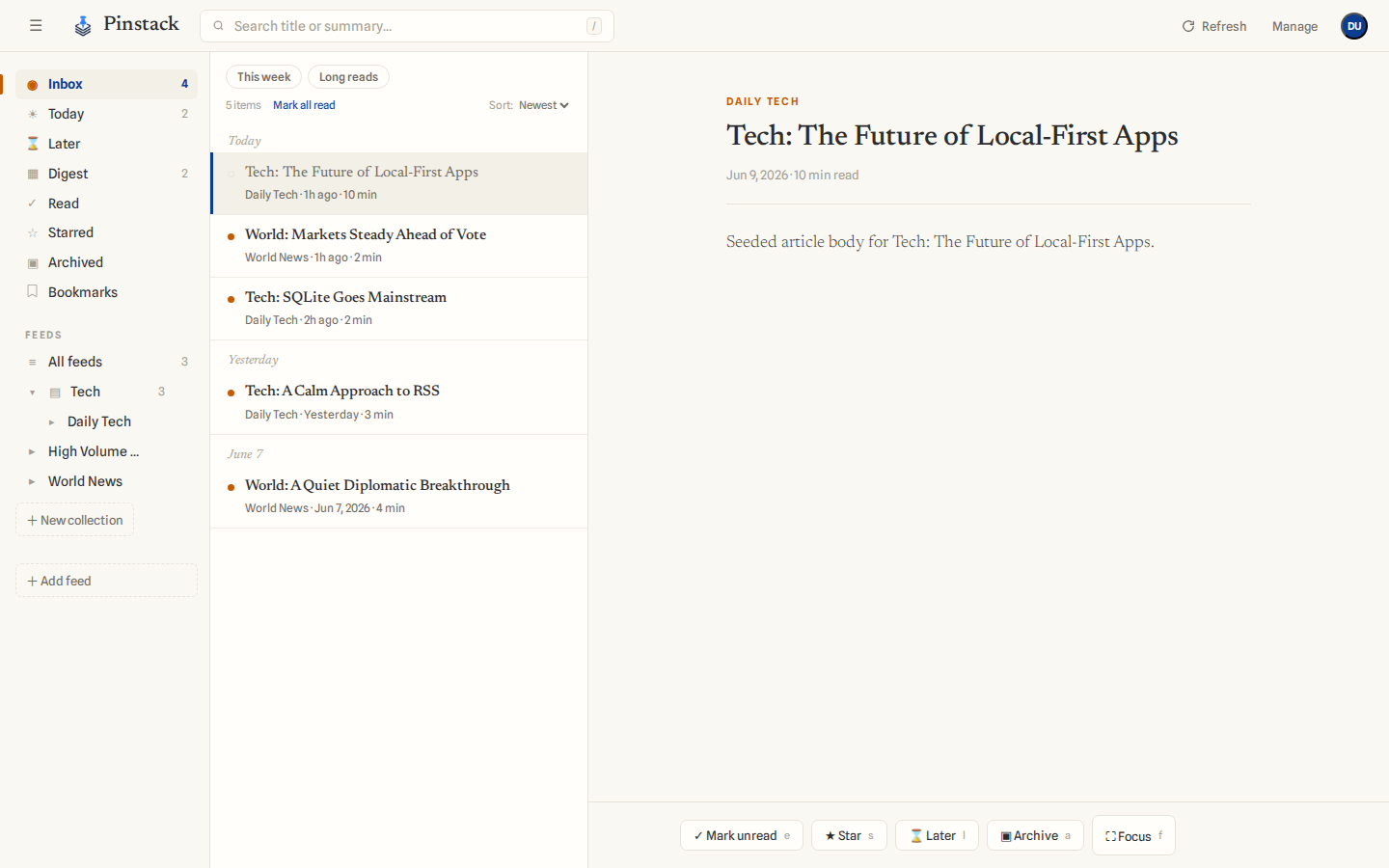
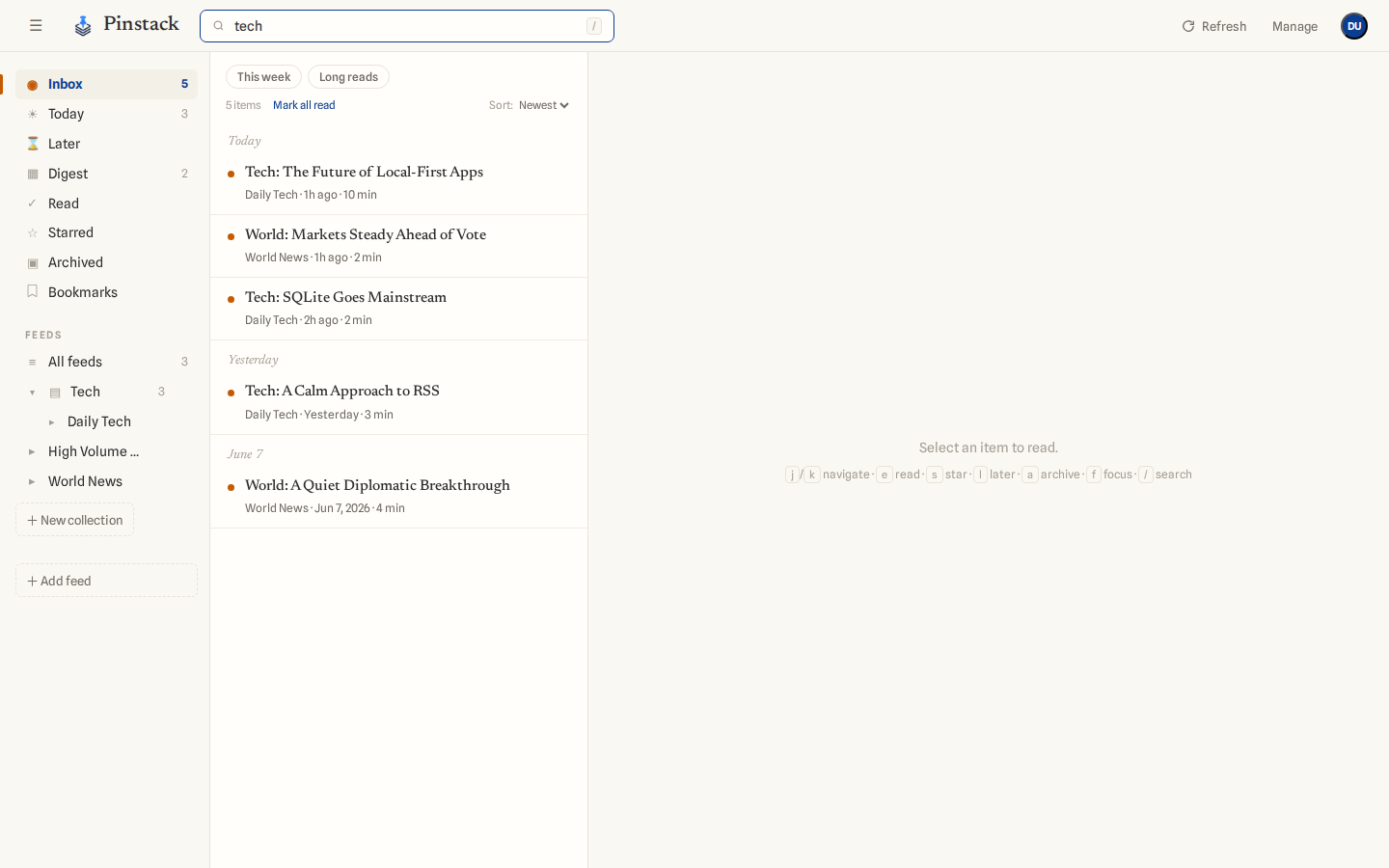
On a desktop, Pinstack shows three panes: the navigation on the left, your item list in the middle, and the article reader on the right.
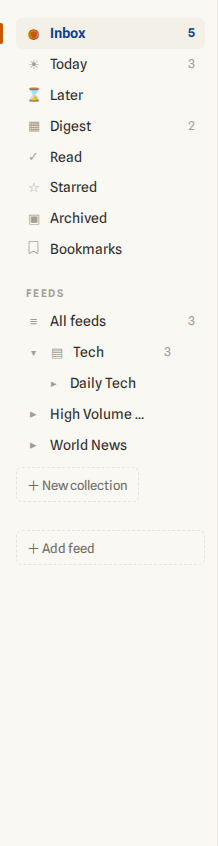
The left navigation has two parts:
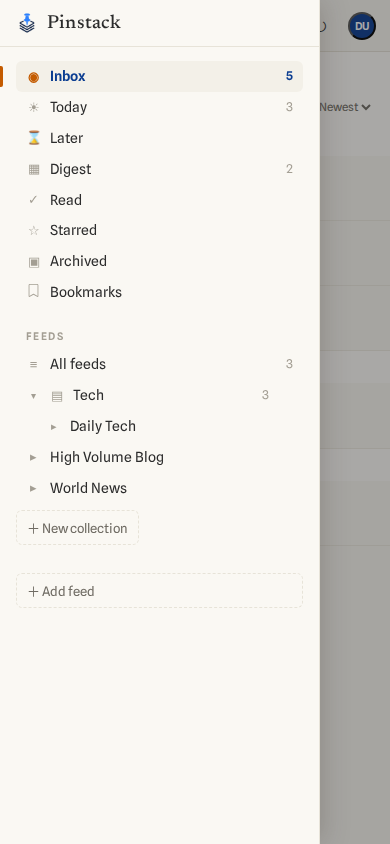
- Views — ◉Inbox, ☀Today (items published today), ⌛Later, ▦Digest, ✓Read, ★Starred, and ▣Archived.
- Feeds — All feeds, your collections (as folders you can expand), and any uncategorized feeds. Click a feed or folder to filter the list to just its items.
The Pinstack wordmark in the top-left always returns you to the Inbox. The ☰ button beside it collapses the sidebar for a wider reading surface — click again to bring it back (Pinstack remembers your choice).
Adding & managing feeds
To add a feed, click + Add feed at the bottom of the left
navigation and paste an RSS or Atom URL (it must start with
http:// or https://). Pinstack fetches it
right away and its items begin appearing in your Inbox.
For a fuller view, open Manage from the top bar. The Manage Sources page lists every feed with its update frequency, when it was last fetched, and a health indicator, and lets you add, edit, or remove feeds and assign each to a folder.
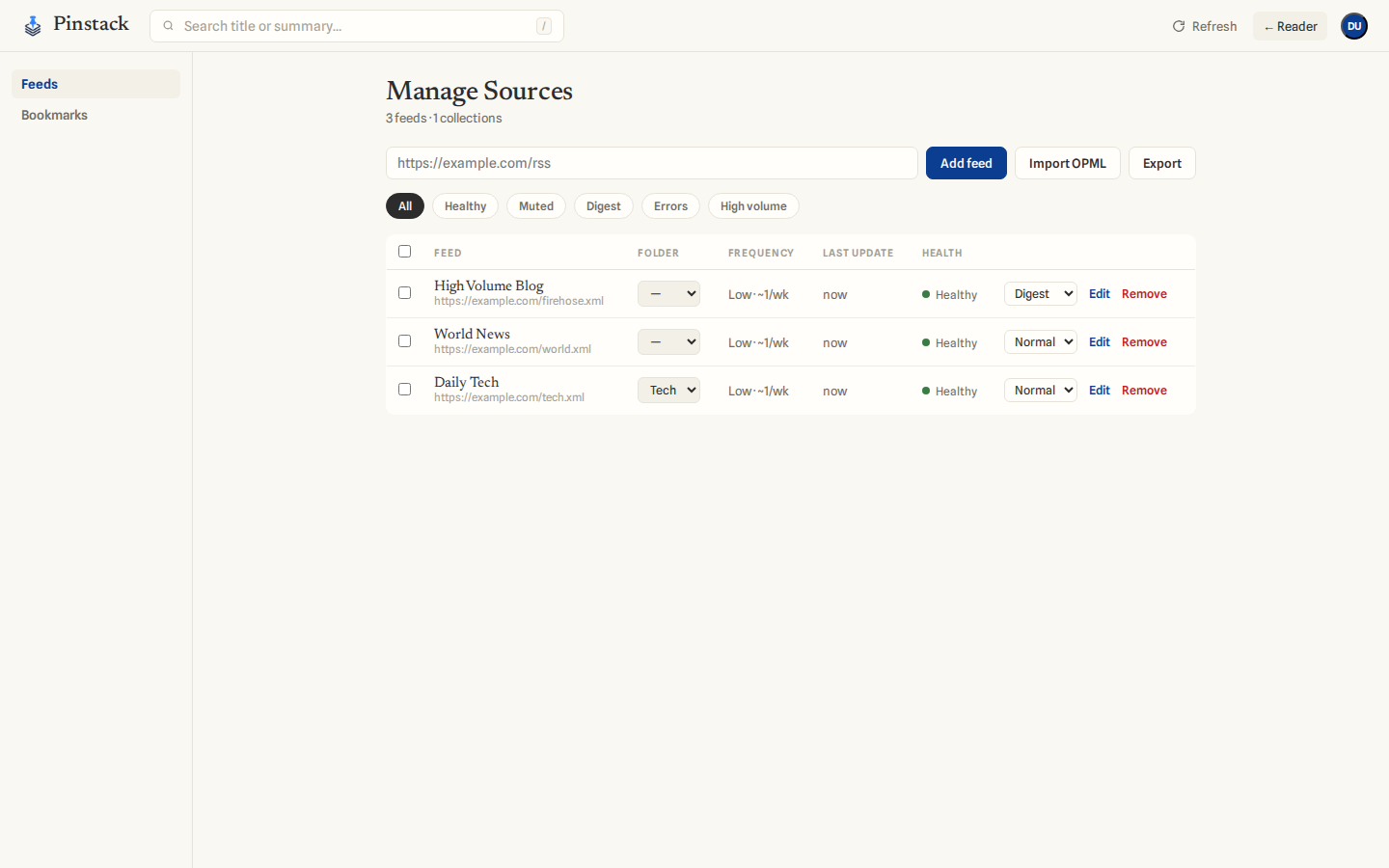
Removing a feed deletes its items from your account. Select several feeds with the checkboxes to move, mute, digest, mark-read, or delete them in bulk.
Collections
Collections are folders that group related feeds — say, Tech or News. Create one with + New collection in the left navigation, then assign feeds to it from the Manage page's Folder dropdown (a feed belongs to at most one collection).
Click a folder to read everything in it at once; click the chevron to expand or collapse it. Deleting a collection never deletes its feeds — they simply become uncategorized again.
Feed modes
Each feed runs in one of three mutually exclusive modes, set from the mode dropdown on the Manage page:
- Normal — the default; items flow into your Inbox.
- Muted — quiets a noisy feed. Its items stay out of Inbox, Today, All feeds, and every count, but you can still open the feed directly to read it. Use it for feeds you want available but not demanding attention.
- Digest — diverts a high-volume feed's unread items into the separate Digest view instead of your Inbox, so a firehose never floods your to-read queue.
Import & export (OPML)
Moving in from another reader? On the Manage page, click Import OPML and choose the file your old reader exported — Pinstack adds the feeds and turns each top-level OPML folder into a collection. Click Export any time to download your feeds as OPML (collections come out as folders), so your subscriptions are always yours to take with you.
Reading an article
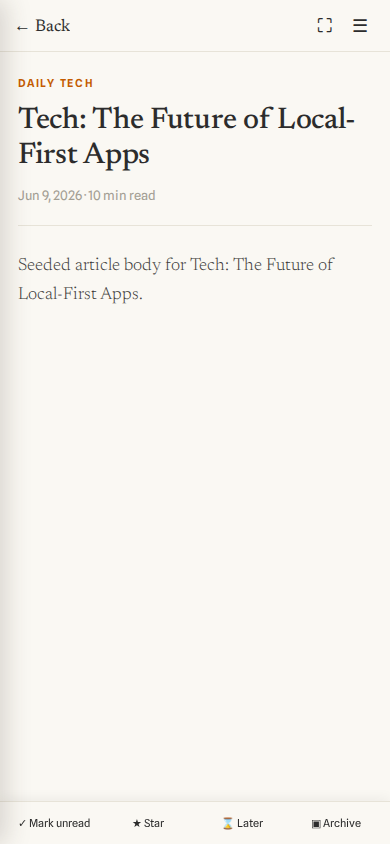
Click an item to open it in the reader (this also marks it read). The first time you open an article, Pinstack fetches and caches its full text so it reads cleanly without ads or clutter. If a site can't be extracted, you'll see the feed's summary plus a Read original ↗ link to the source.
Triaging items
The action bar under each article — and the keyboard and swipe shortcuts — let you move items through the flow:
- ✓ Mark read / unread — toggle an item's read state.
- ★ Star — keep an item as a favourite. Starred items live in the Starred view forever.
- ⌛ Later — queue an item to read when you have time; it leaves the Inbox and joins Later.
- ▣ Archive — dismiss an item you're done with.
- ⛶ Focus — open the article in distraction-free Focus mode.
To clear a whole view at once, use Mark all read above the list. Because there's no bulk undo, Pinstack asks you to confirm first.
Focus mode
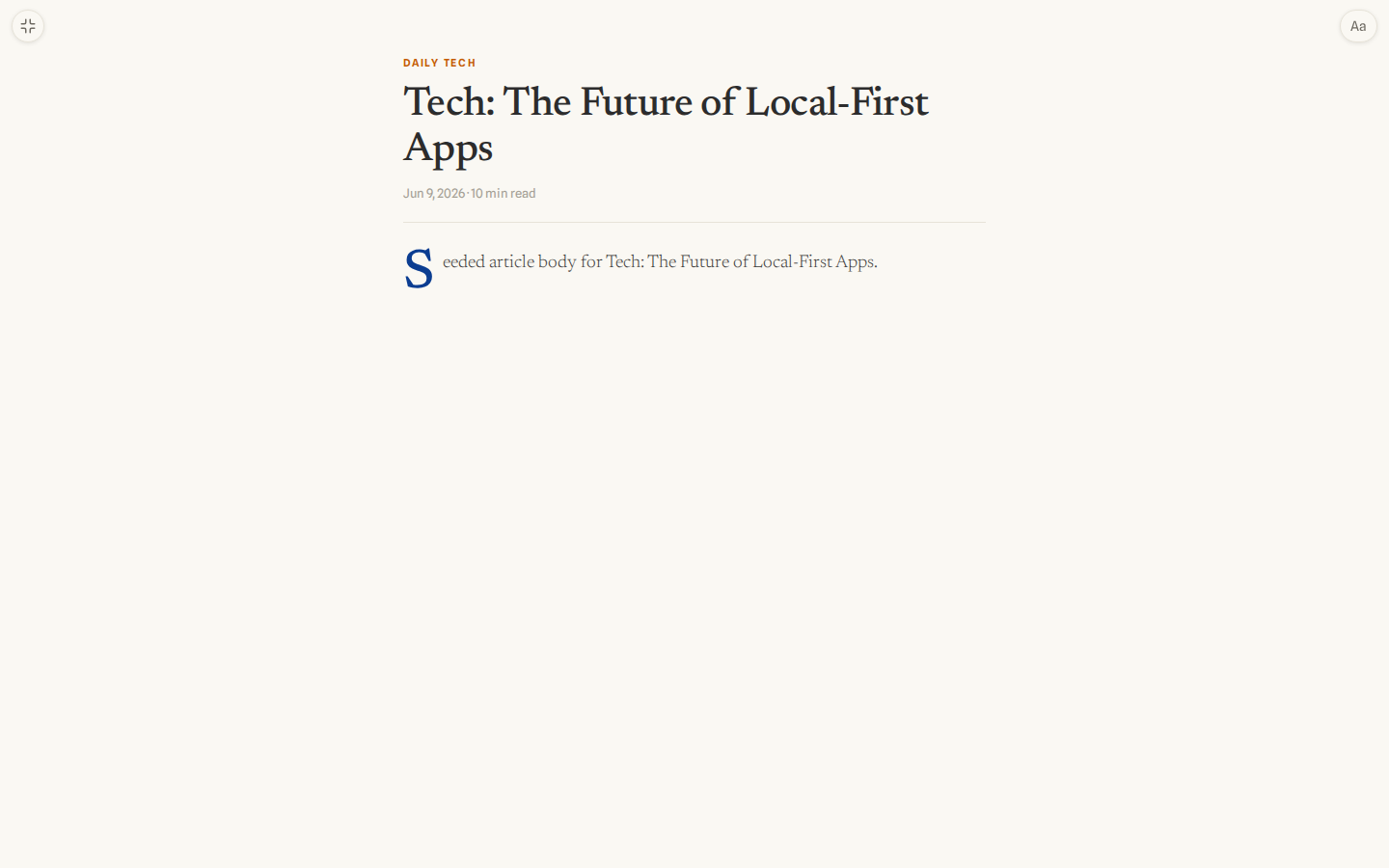
Focus mode strips everything away for a single, full-screen article. A reading-progress bar tracks how far you've read, and a small controls popover lets you change the font size (A− / A+), toggle a light or dark theme, and jump to the original page. Press Esc (or tap the exit control) to return to the reader.
The Digest view
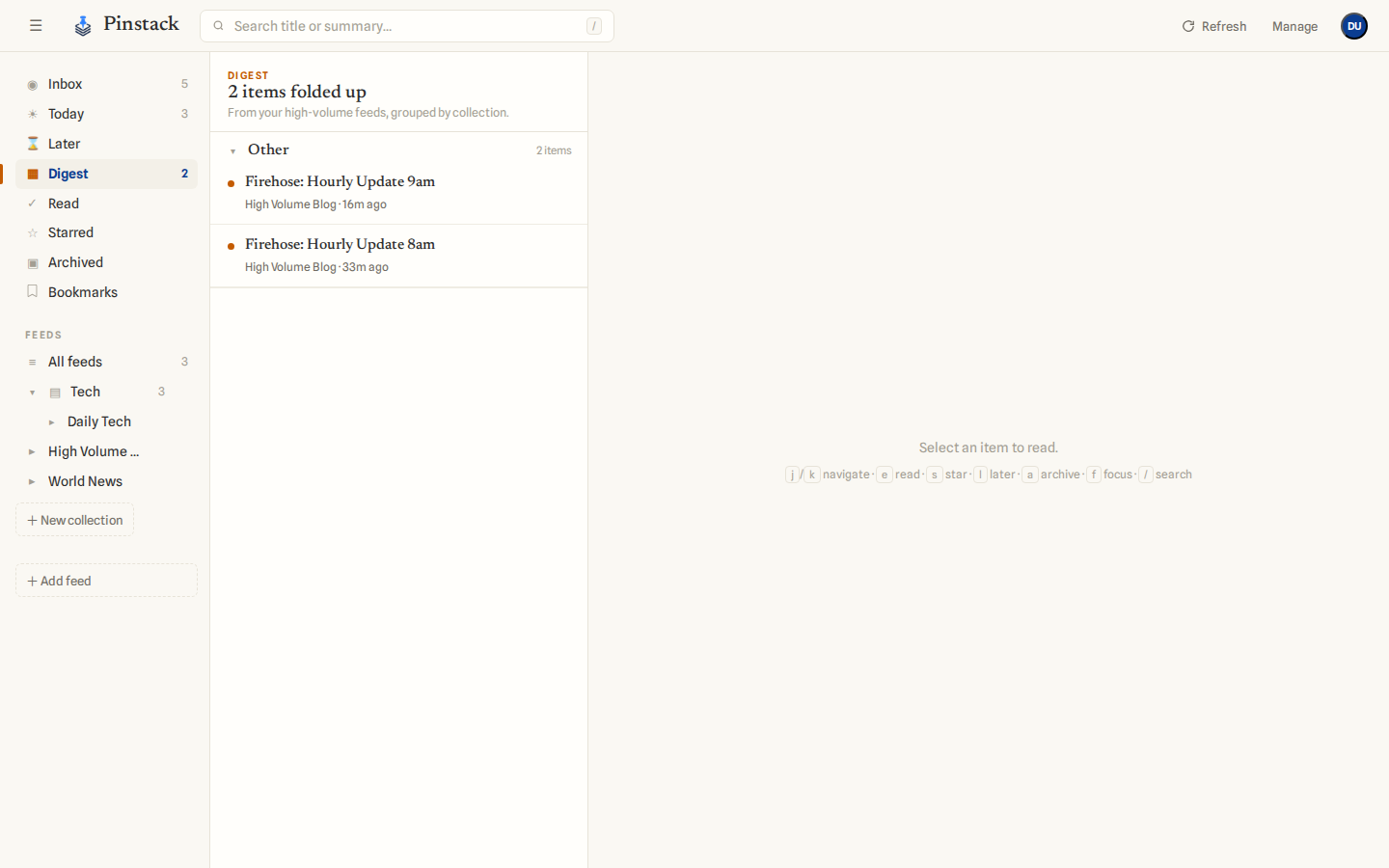
Feeds you set to Digest mode collect here instead of crowding your Inbox. Items are folded into groups by collection, each showing a count and a peek at the latest titles; expand a group to read its items inline. It's the relief valve for high-volume sources you want to skim, not triage one by one.
Search
The search box in the top bar filters your items by title, summary, and extracted article text as you type. Results always stay in time order — Pinstack never re-ranks them by relevance, so you always know where you are.
Bookmarks
Bookmarks are Pinstack's home for the links you want to keep — separate from your feeds. Open Bookmarks in the sidebar to browse them: the list sits in the middle, your tags on the right. Click a tag to filter, use the top-bar search to find anything by text, and click a bookmark to read it in a clean full-screen view (Pinstack fetches and caches the article the first time you open it).
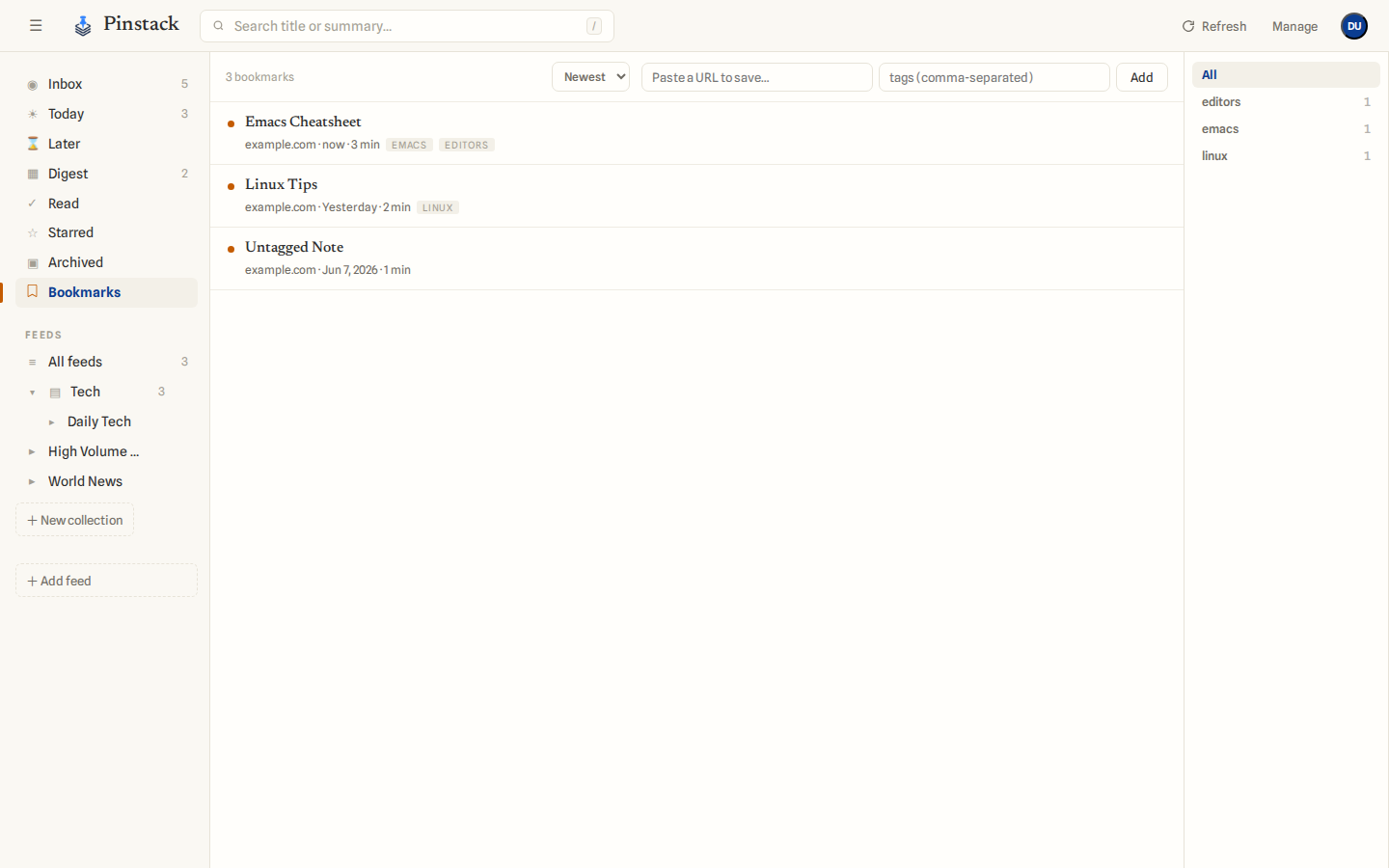
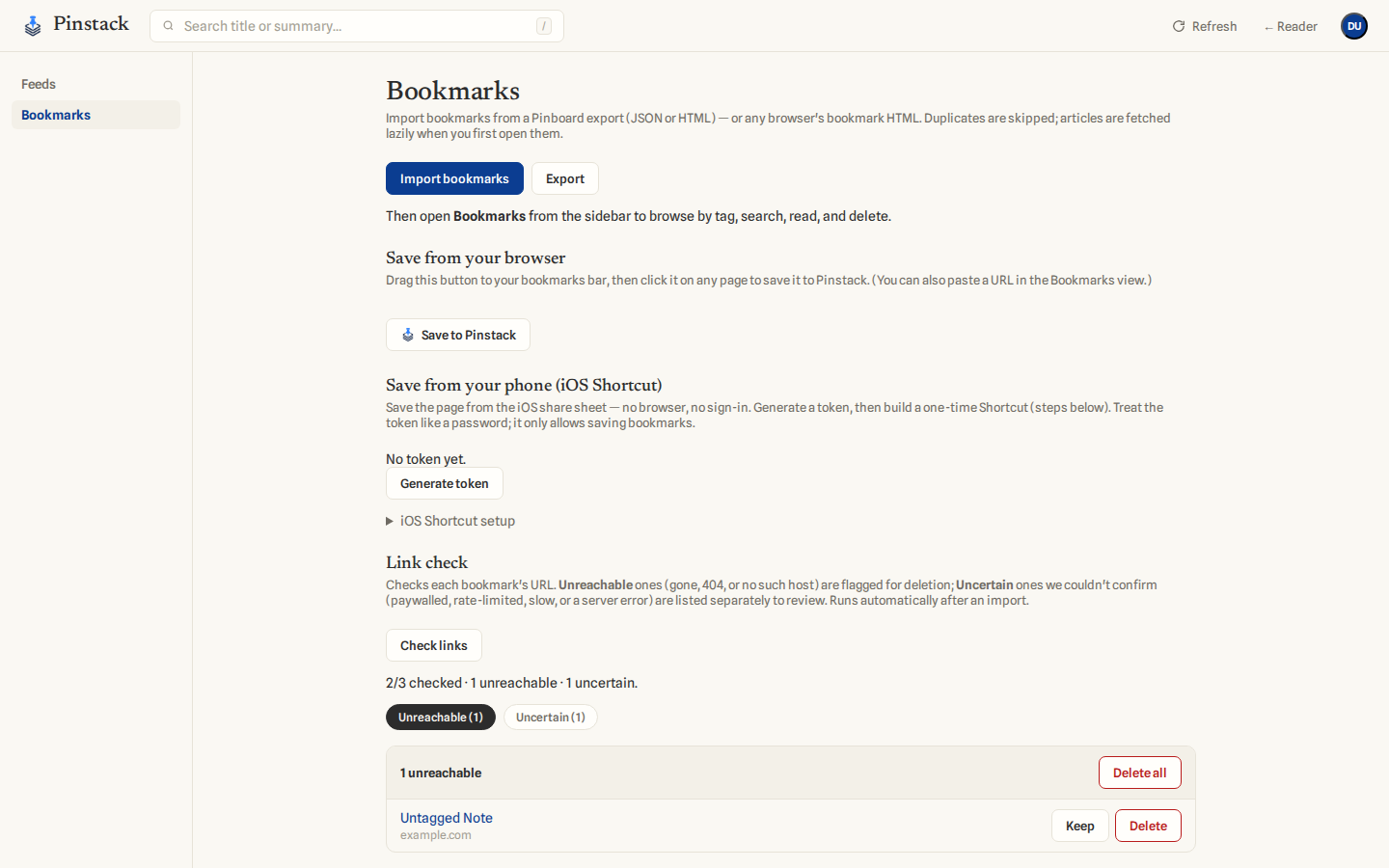
Saving links. Paste a URL into the box at the top of the list (with optional comma-separated tags) and click Add. From your browser, drag the Save to Pinstack button (Manage → Bookmarks) to your bookmarks bar — clicking it on any page brings the URL, title, and any selected text into Pinstack ready to save. On iPhone, generate a save token under Save from your phone and build the one-time iOS Shortcut it describes: after that, sharing any page → Save to Pinstack saves it instantly — no browser, no sign-in.
Editing & housekeeping. While reading a bookmark, Edit changes its title and tags; Delete removes it (also available from the list). Manage → Bookmarks can import a Pinboard export (JSON or HTML) or any browser's bookmark file, export everything back out as JSON, and run a link check that sorts your library into Unreachable (gone for sure — 404, dead domain) and Uncertain (paywalled, rate-limited, or slow) so you can keep or delete each with one click.
Filters & sort
Above the list, filter chips narrow what you see within the current view: This week, Long reads (articles of 1,500+ words), and — in mixed views — Unread. Chips reset when you switch views. The Sort control flips between Newest and Oldest first and remembers your choice.

Settings & theme
Open Settings from your avatar menu. The Theme picker applies across the whole app: Light (the paper theme), Dark (warm dark), or System, which follows your device's appearance and switches automatically.
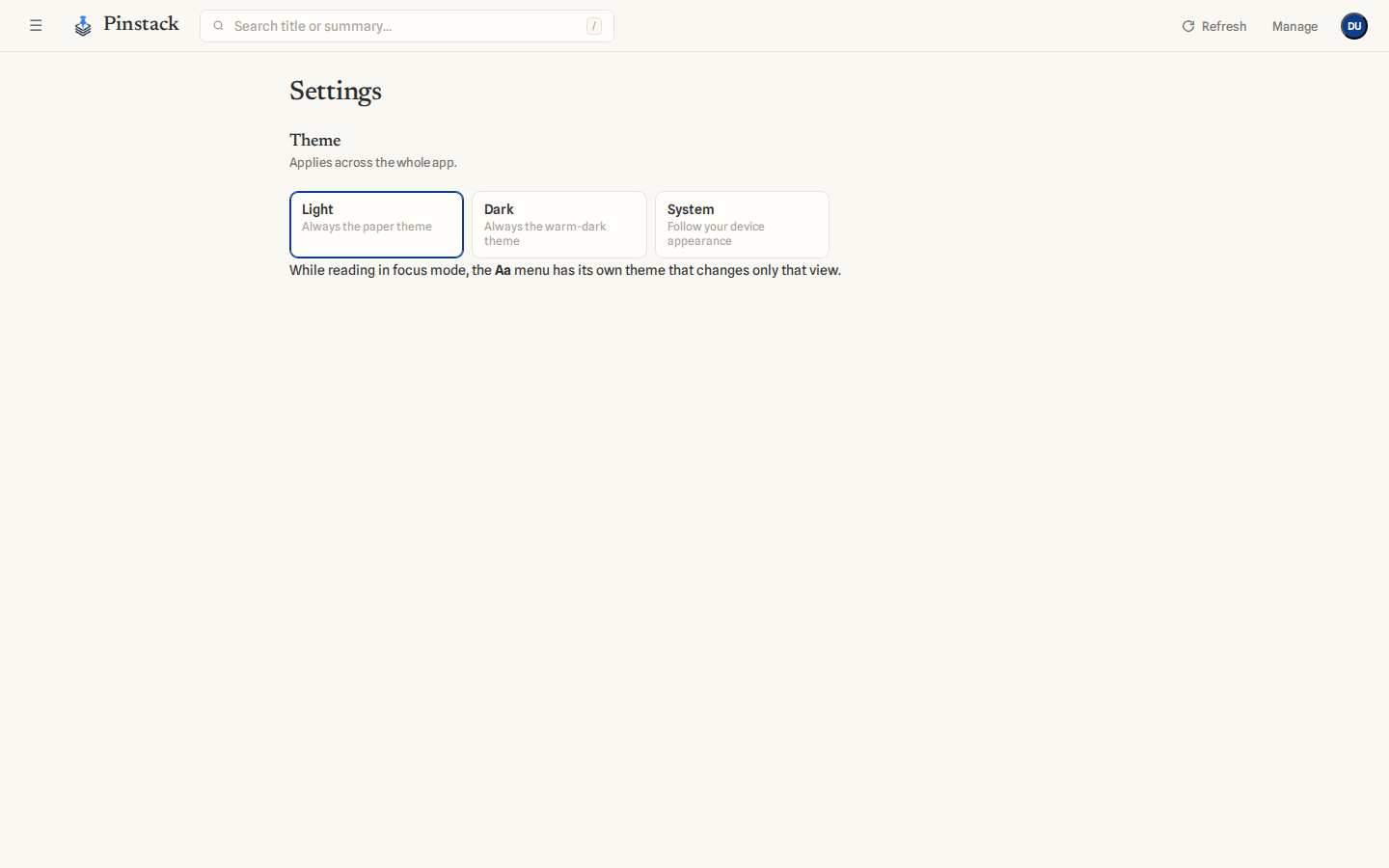
Focus mode keeps its own reading theme: the Aa menu's theme toggle changes only the full-screen reading view, so a dark reading surface doesn't have to mean a dark app (or vice versa).
Refreshing
Pinstack checks your feeds for new items automatically about every ten minutes, and immediately whenever you add a feed. To pull updates right now, click Refresh in the top bar (or the ↻ button on mobile).
Keyboard shortcuts
On a desktop, you can fly through your reading without the mouse:
| j k | Move to the next / previous item (marks it read) |
| e | Mark read / unread |
| s | Star |
| l | Save to Later |
| a | Archive |
| f | Open in Focus mode |
| o Enter | Open the original article in a new tab |
| / | Jump to search |
| Esc | Exit Focus mode / leave search |
On your phone
On a small screen Pinstack becomes a single, full-screen surface that drills in one level at a time: your list of items, then the article, with a back affordance at each step. Tap ☰ to slide out the navigation drawer; tap the Pinstack wordmark to return to the Inbox.
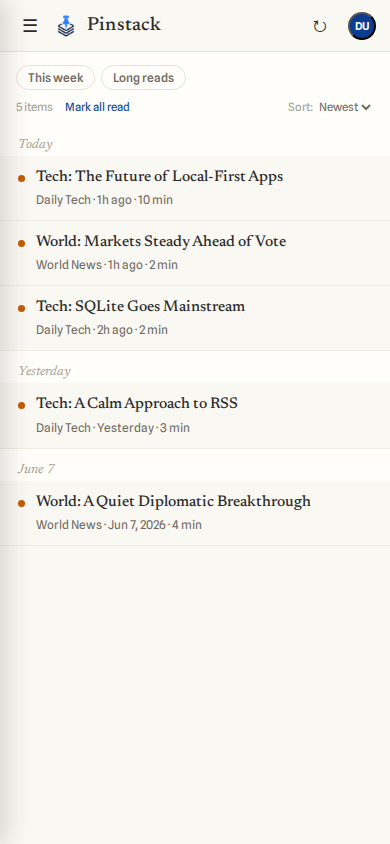
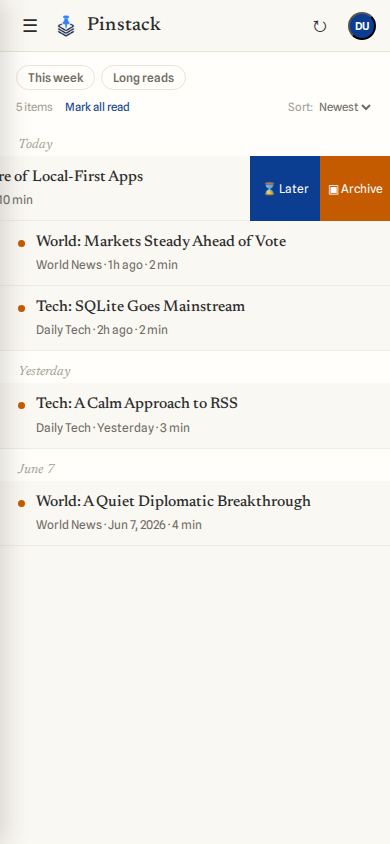
List rows respond to swipes: swipe right to star an item, or swipe left to reveal Later and Archive.
Getting help
Still stuck? The FAQ covers common questions, or email support@pinstack.in for support.